Improving a lesson
In this section, you will learn how to make your exploration better by:
Watch this video to learn how to improve your exploration, or if you prefer reading the instructions instead, keep scrolling down.
Using the Improvements tab
Oppia’s explorations are designed to be improved over time as learners engage with the content. You can use the Improvements tab to determine how learners are using your exploration and what they think about it, and make changes accordingly.
- Click the
 Improvements button in the navigation menu.
 - At the very top of the page, you can see how many Open Tasks are waiting for your review.
Note
By default, only open tasks are shown in the Improvements screen. If you want to see tasks that have been previously resolved, uncheck the Show only “Open” tasks box. This will show you any feedback or suggestions that you previously received on the exploration. All other tasks—once resolved—are permanently deleted.
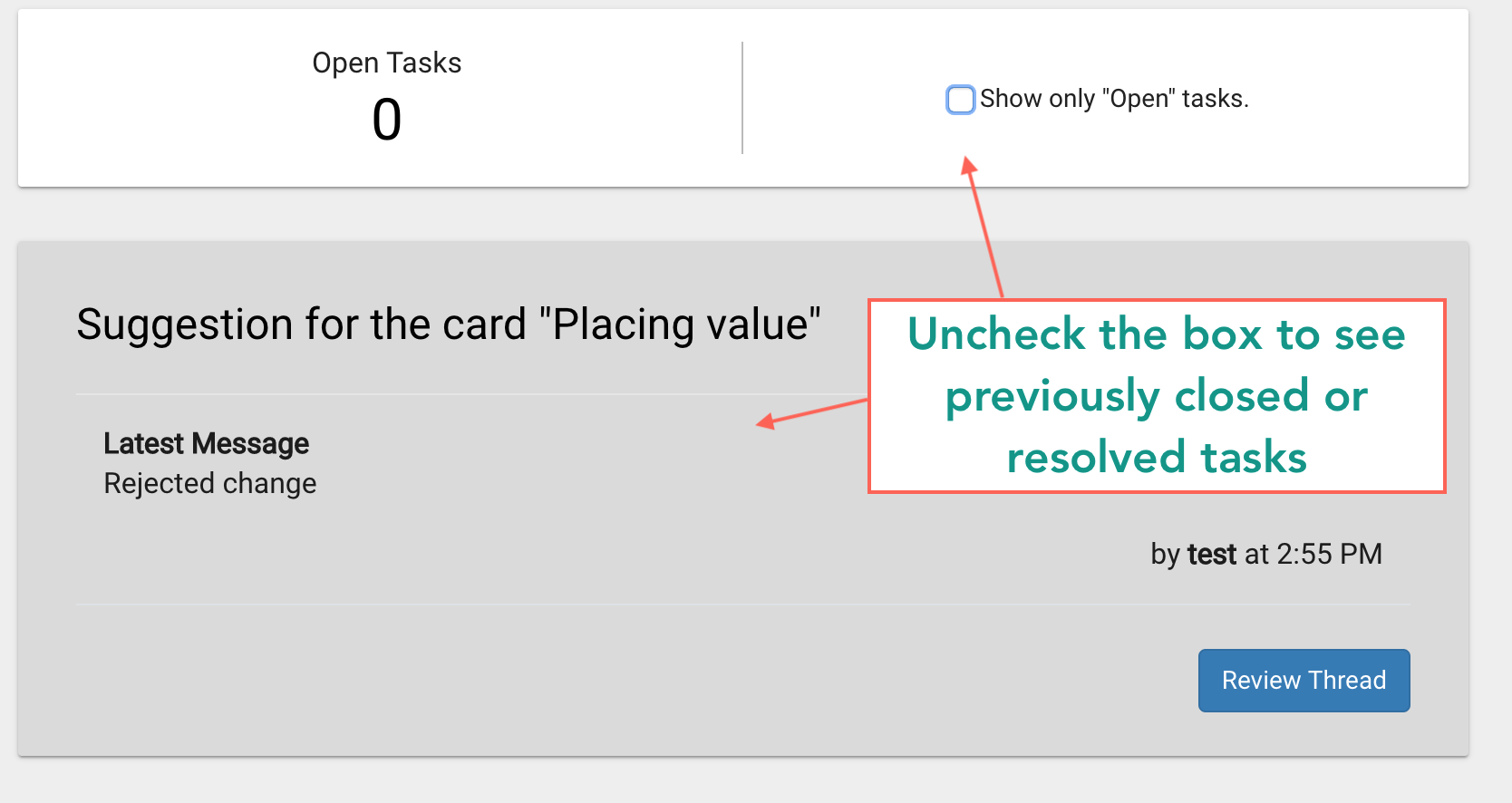
Fig. 1
The following are the types of open tasks you might see.
Feedback on a card
Learners have the option to provide feedback on each card as they play through an exploration, as well as at the end when they are asked to review the exploration. If they have provided any feedback, you will see a task similar to the image below.
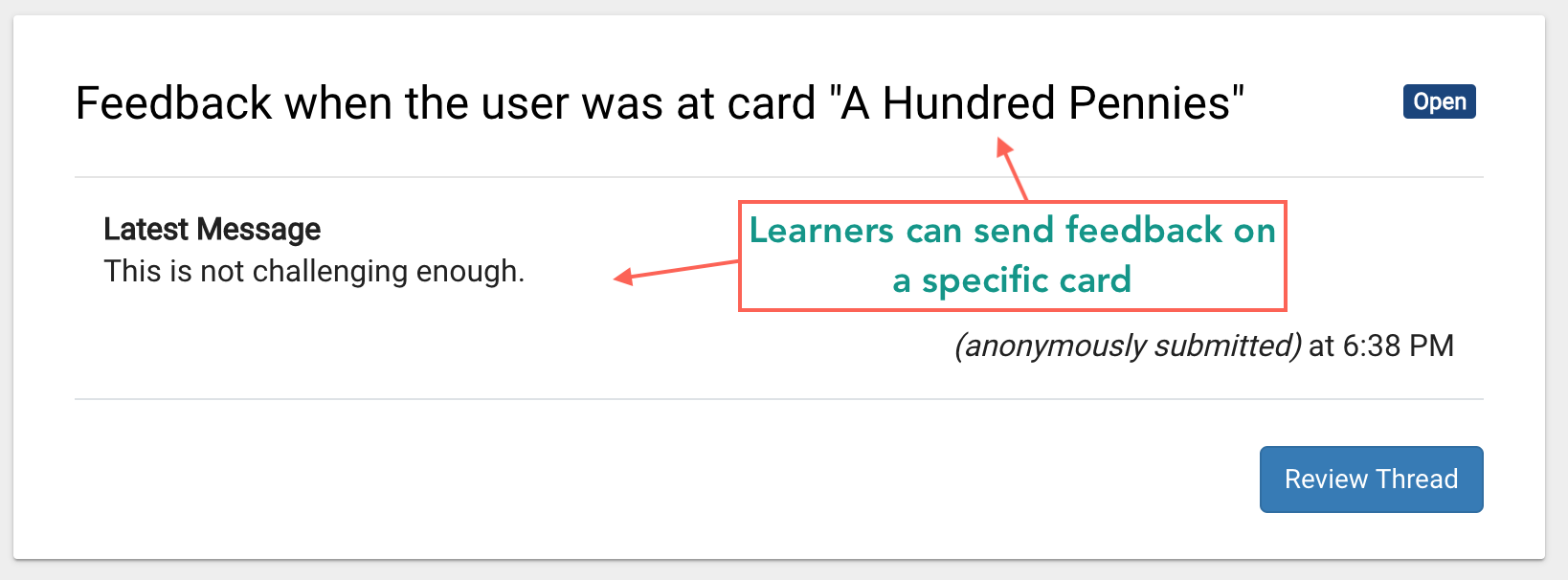
Fig. 2
- To change the status of the feedback or write a message in response to the feedback for your record, click on the
 button.
 - Click
 when done.
Caution
Leave the status at Open if you are still working on the task. Only use the other options if you want to hide the task from the Improvements screen.
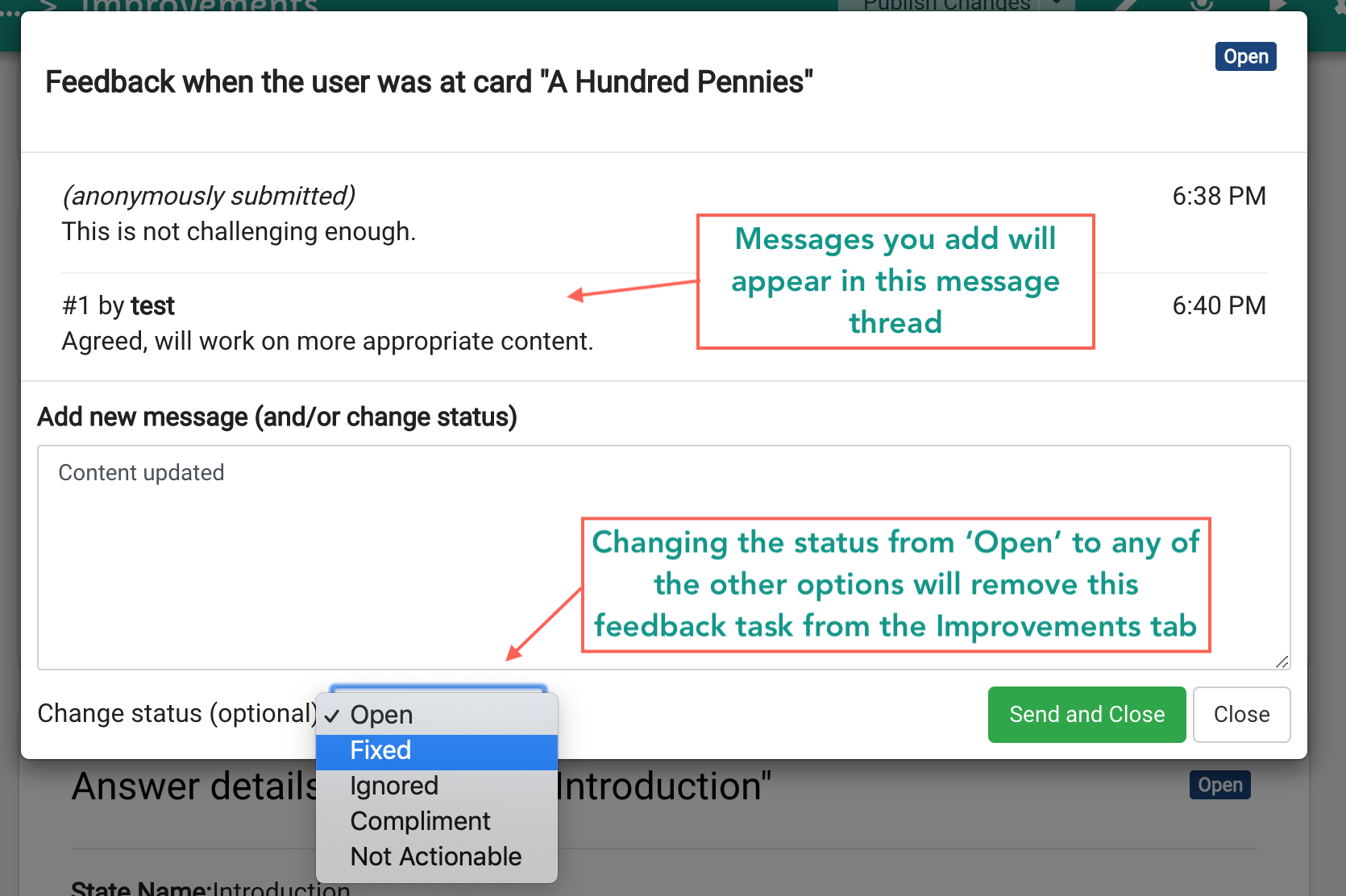
Fig. 3
Suggestions for a card
Learners also have the option to suggest an edit on one or more cards, e.g., a change in the content, formatting etc. This comes through as a Suggestion task in the Improvements screen.
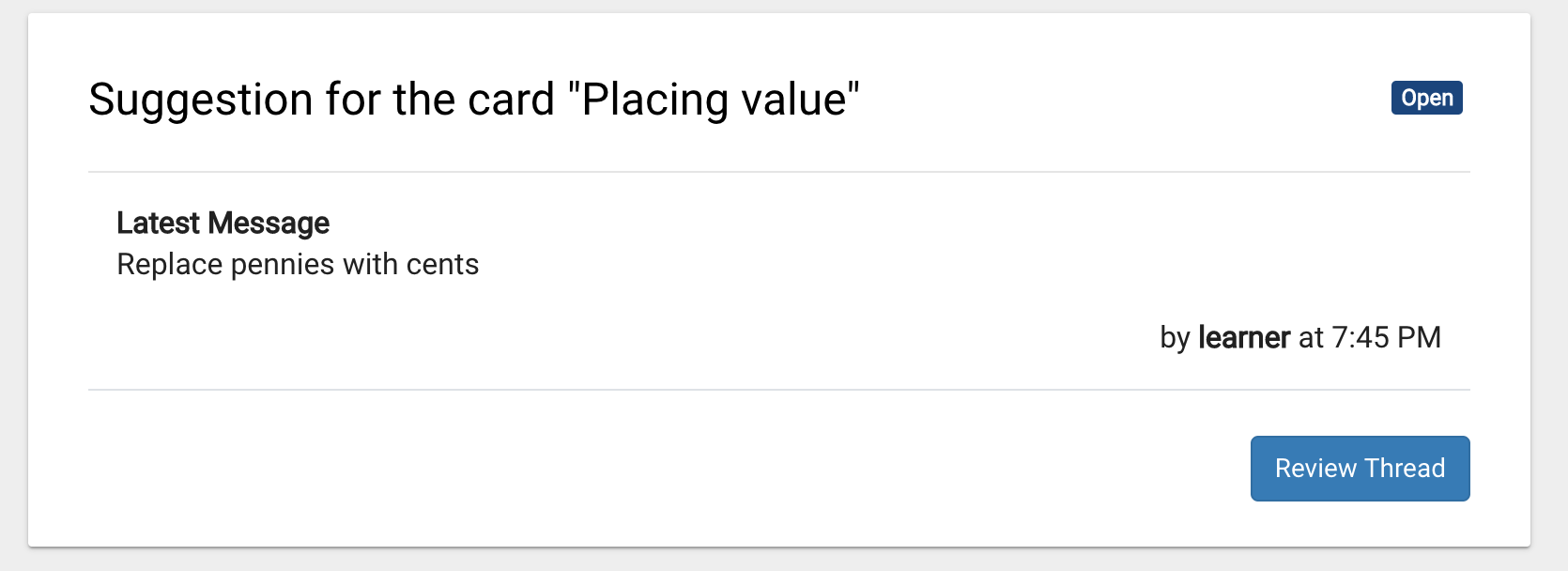
Fig. 4
- Click the button and then the
 button to take action on this suggestion.
- After reviewing the changes suggested by the learner, you can either accept or reject the suggestion.
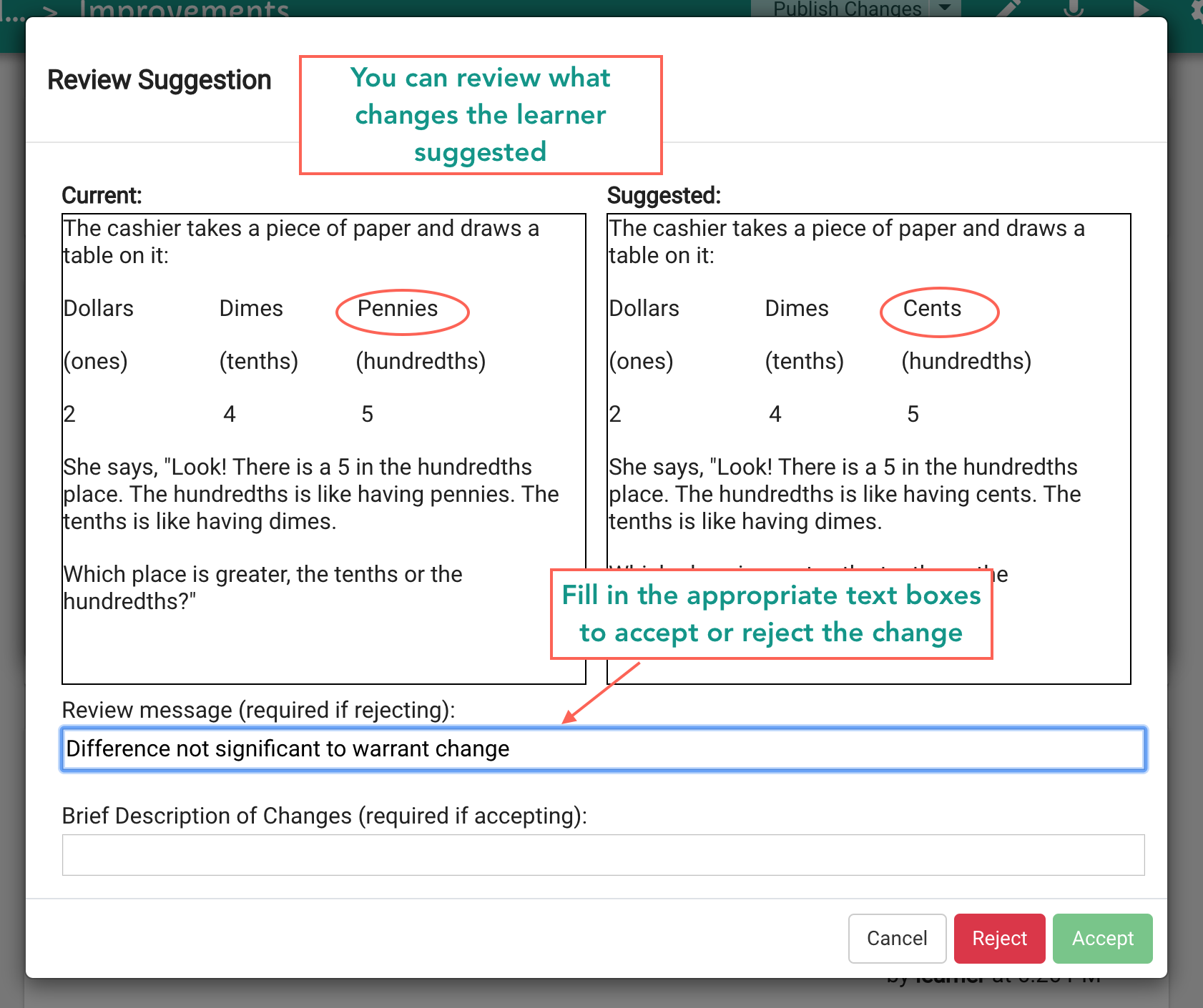
Fig. 5
- Enter a new message if you wish to add to the message thread and change the status of the suggestion as required. Finally, click the button.

Fig. 6
Answer details for a card
If you checkmarked the Solicit Answer Details box while creating your exploration, Oppia will occasionally ask a learner to explain why they chose a certain answer for that card.
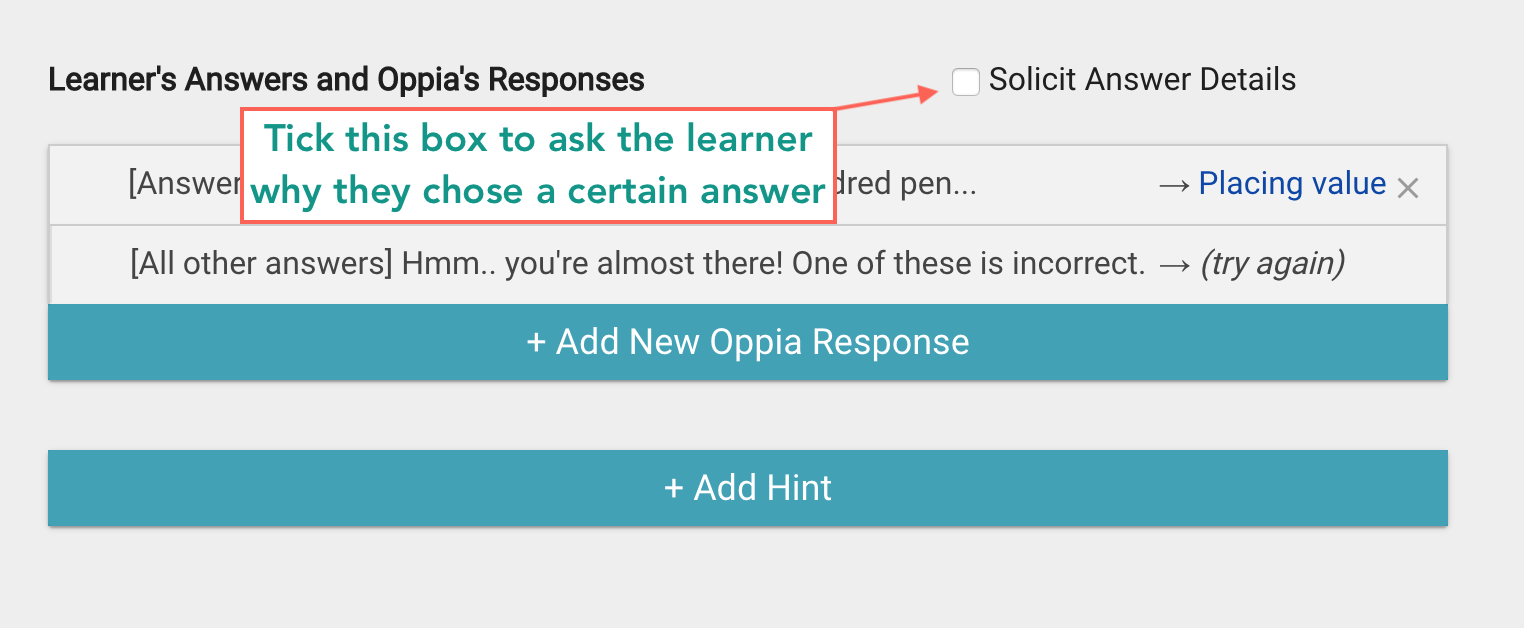
Fig. 7
Whenever a learner explains why they chose their answer for a card, you will see the details in the Improvements screen as shown below.
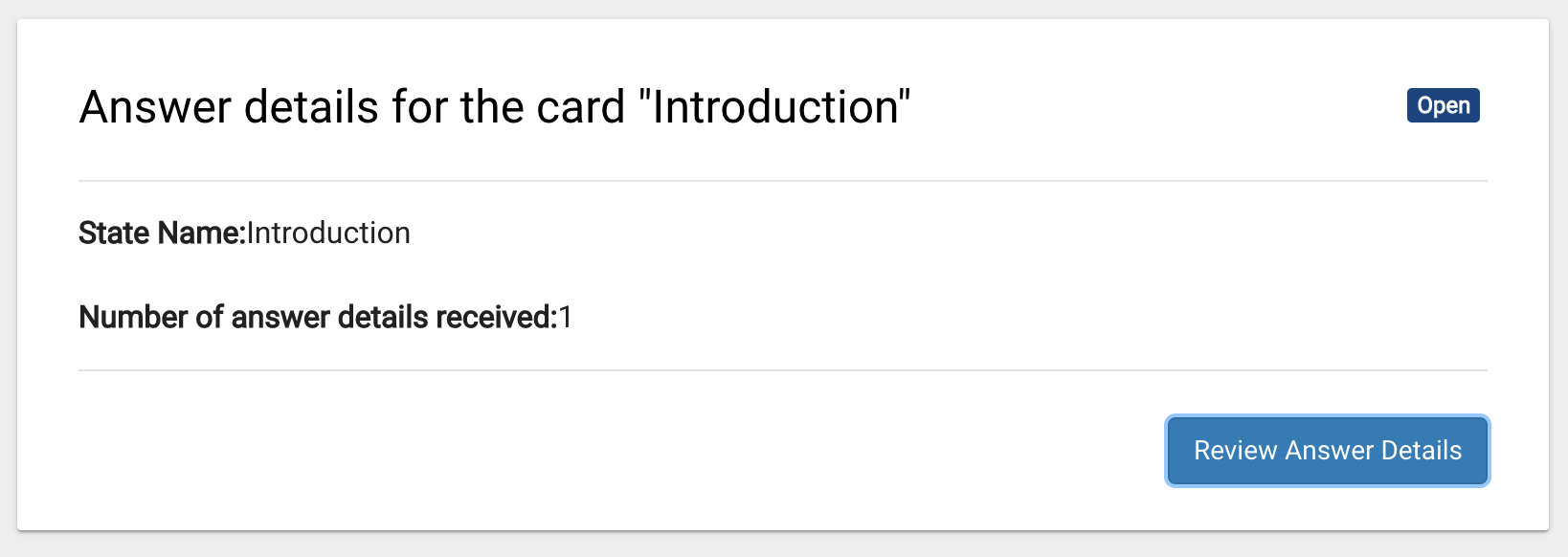
Fig. 8
- To review the details, click the
 button and click under Answer details to expand the comment.
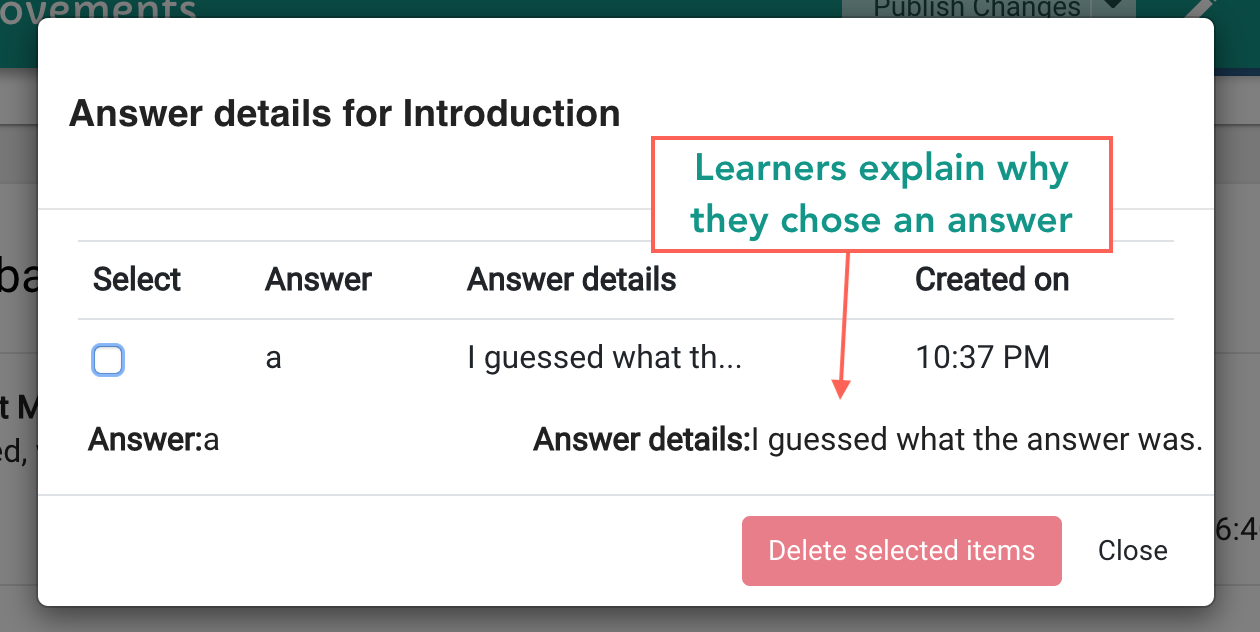
Fig. 9
- To delete any Answer details received, checkmark the Select box next to each of them and click on the
 box.
box.
An example on improving an exploration
Let’s say you asked the question: Which is greater: 0.834 or 0.2? and requested an explanation from the learner for their answer. The learner selected the right answer, but explained they chose it because it was a longer number. This is obviously a misconception, so you may then decide to include additional cards beforehand or branch out to focus on place value or the decimal-fraction link.
Exiting a lesson early
Another issue you might see here is when a learner quits your exploration early without completing it to the end.
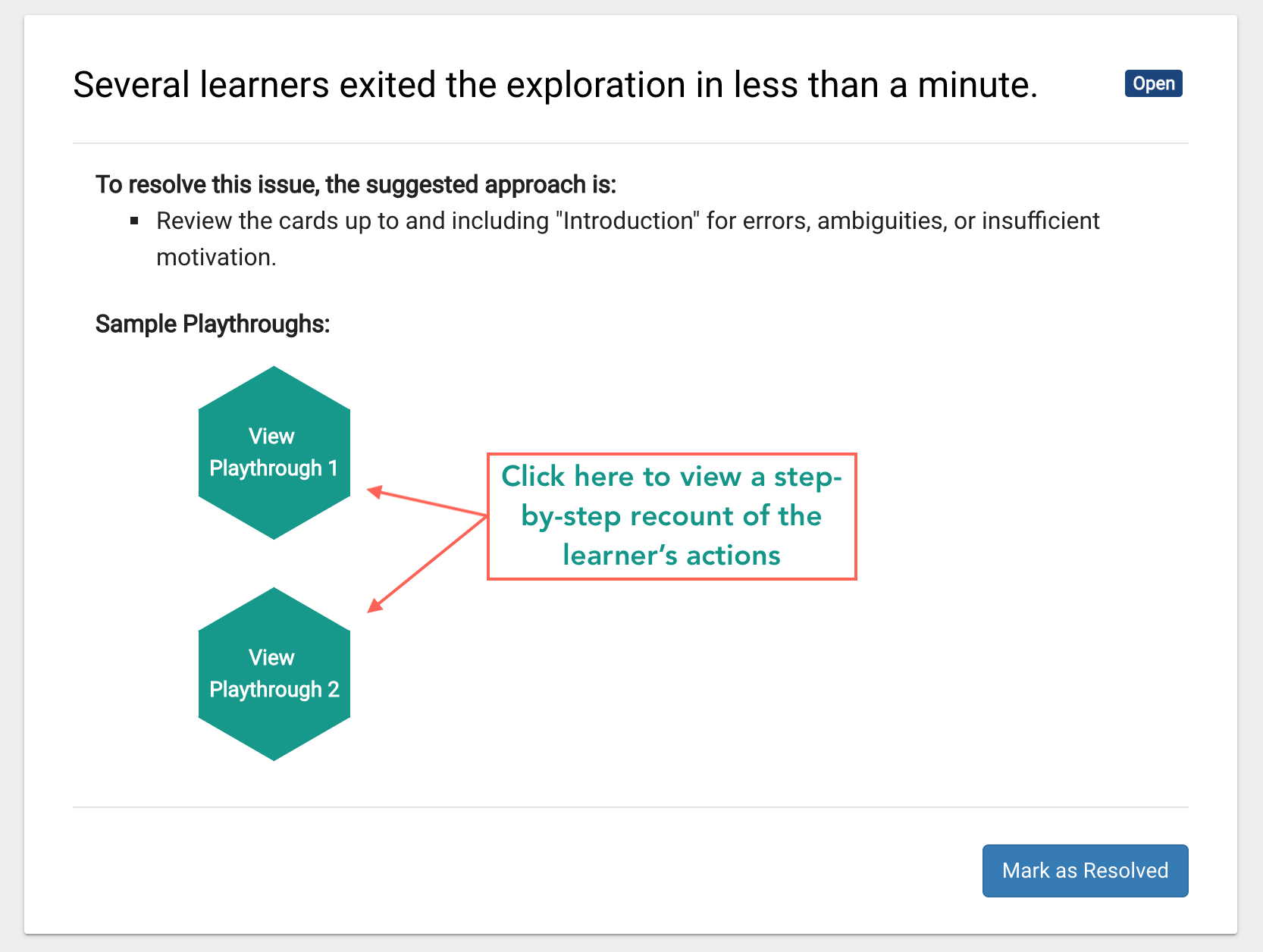
Fig. 10
Oppia will provide one or more sample playthroughs that will outline exactly how the learner proceeded through the exploration from start to finish.
- To see exactly what the learner did, click on the green View Playthrough button.

Fig. 11
- To permanently remove the task from the Improvements tab, click the
 button.
Tip
Look out for patterns here—if learners seem to quit at one card in particular, then perhaps the difficulty level is too high, or the content is ambiguous.
Answering incorrectly multiple times
Oppia can also flag when a learner submits an incorrect answer several times on a card.
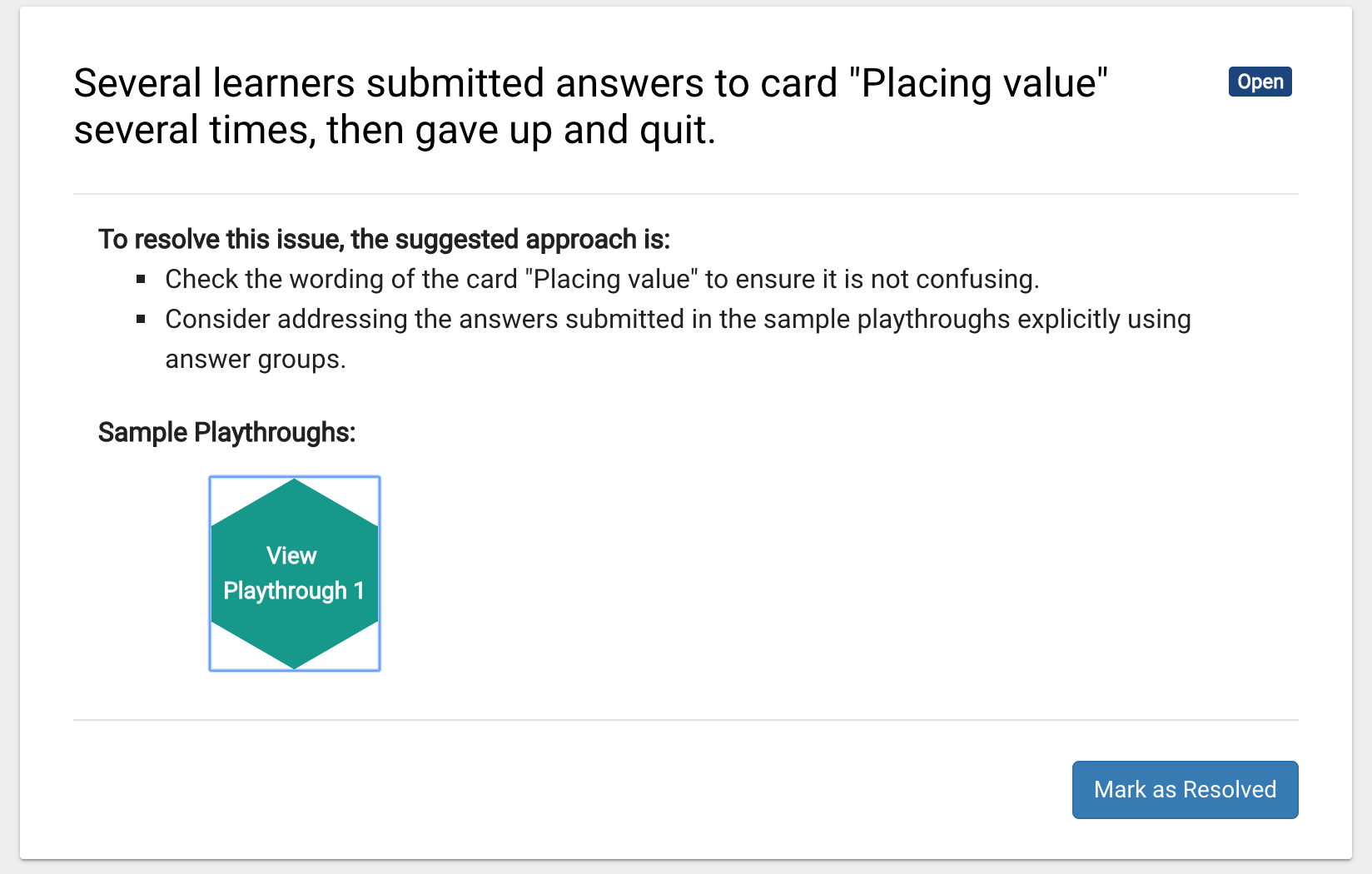
Fig. 12
- To see exactly what the learner did, click on the green View Playthrough button.
- To permanently remove the task from the Improvements tab, click the button.
Tip
If it makes sense, consider adding an incorrect answer in the Learner’s Answers and Oppia’s Responses section of the card. This will let you provide explicit feedback and may work particularly well with open-ended questions or cards with a ‘Text Input’ interaction.

Fig. 13
Revisiting the same card multiple times
If a card in your exploration loops back to an earlier card in case of an incorrect answer, a situation may arise where a learner keeps returning to the earlier card and gets stuck in a cyclic loop. This will appear in the Improvements screen as shown:

Fig. 14
- To see exactly what the learner did, click on the green View Playthrough button.
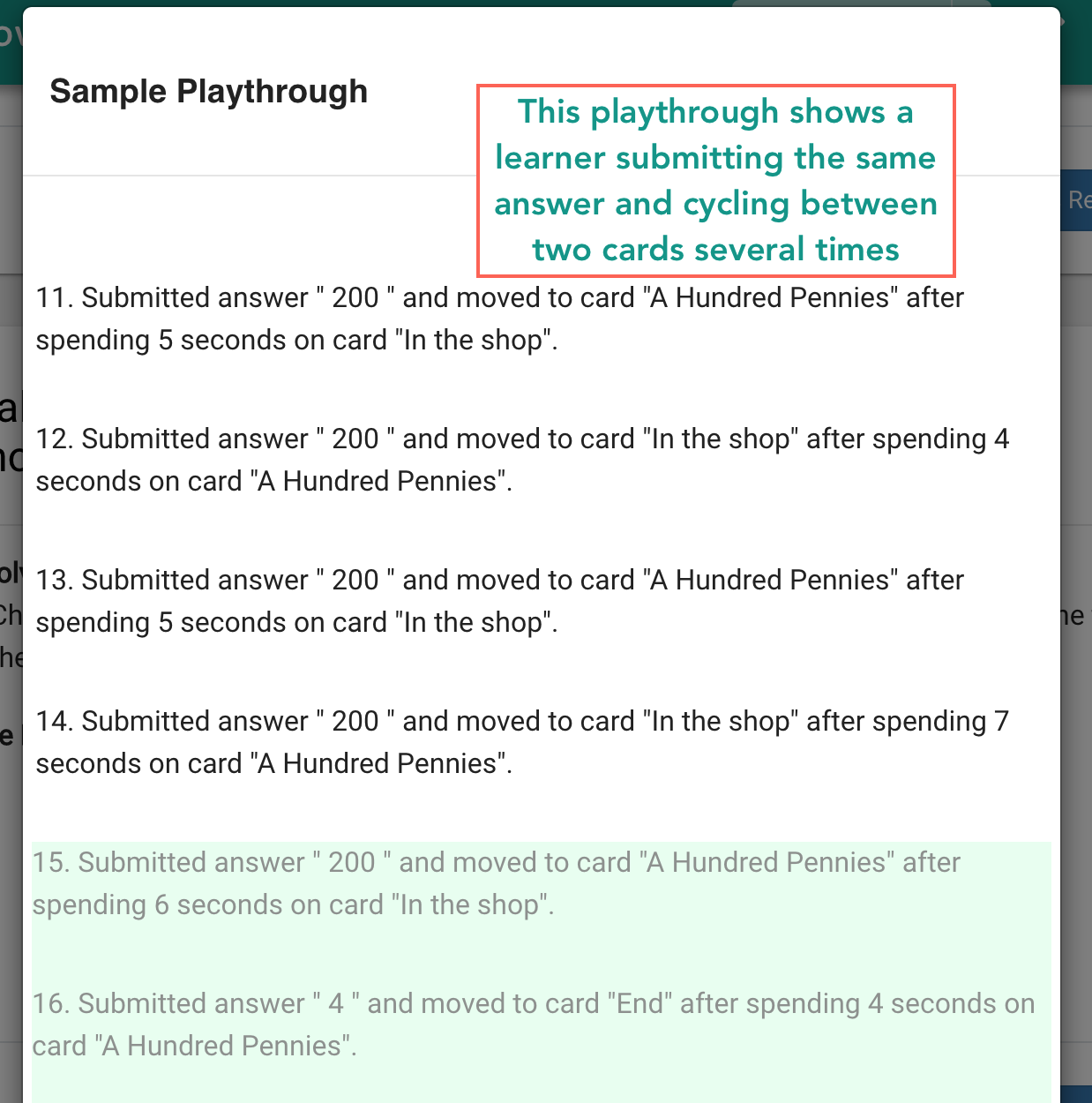
Fig. 15
- To permanently remove the task from the Improvements tab, click the button.
Tip
If a learner keeps returning back to an earlier card, it appears they have not grasped the concept in that card. Consider rewriting the card to explain the concept more clearly, or provide more explicit feedback when they answer incorrectly.
Adding branches to an exploration
When you first create an exploration, it’s easiest to begin by creating a single series of questions and answers that might help a student understand the concept. This is the main ‘trunk’ of your lesson. You can start to add branches to this trunk as learners engage with your lesson and you notice certain patterns in the way they answer.
For example, if many students are consistently getting the incorrect answer on one card in particular, you could redirect those students to a more elaborate explanation by sending them to a different branch (with one or more cards) which would eventually rejoin the main path of your exploration.
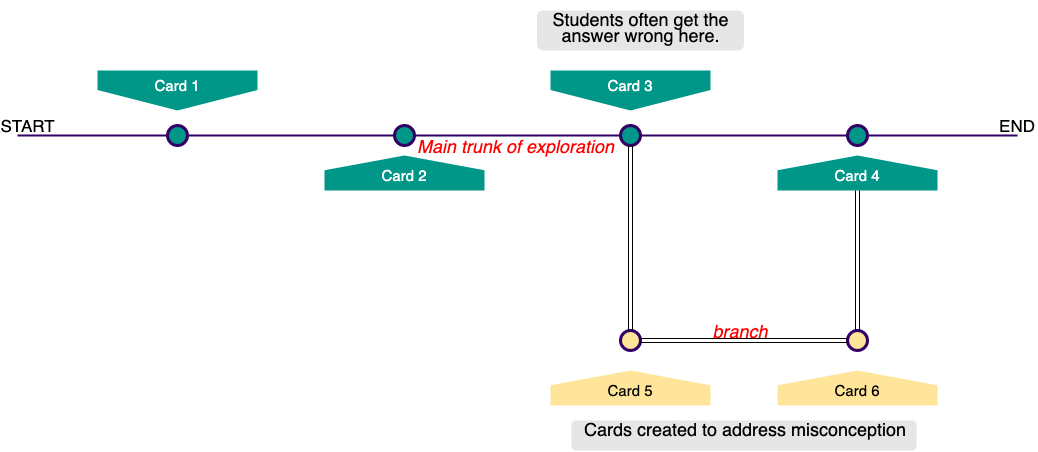
Adding a branch to an exploration
Let’s look at an example where the learner is asked to compare decimal place values.
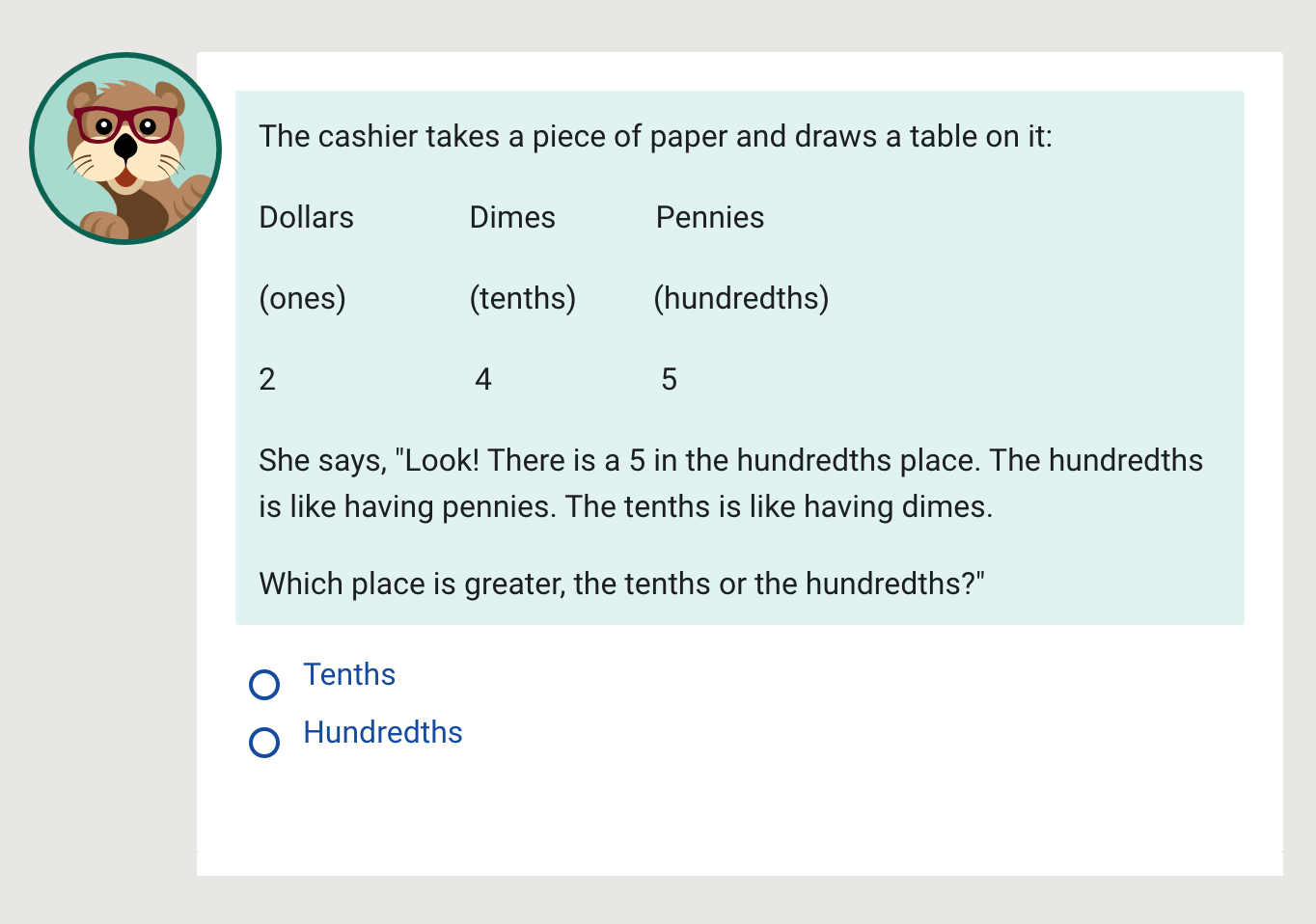
Fig. 16
If you notice quite a few students have been answering ‘Hundredths’ to this question, this is an indication that they are mistakenly equating place values for decimals with place values for whole numbers. To correct this misconception, you can branch out from this card and provide further explanation.
- In Editor mode, go to the card in question and under Learner’s Answers and Oppia’s Responses click on the incorrect answer option (Hundredths).
- To branch out from this incorrect answer, click on the drop-down menu and select A New Card Called… Give the card a title and click on
 .
.

Fig. 17
- The new card is now visible in the Exploration Overview section. Click on this card to add content.
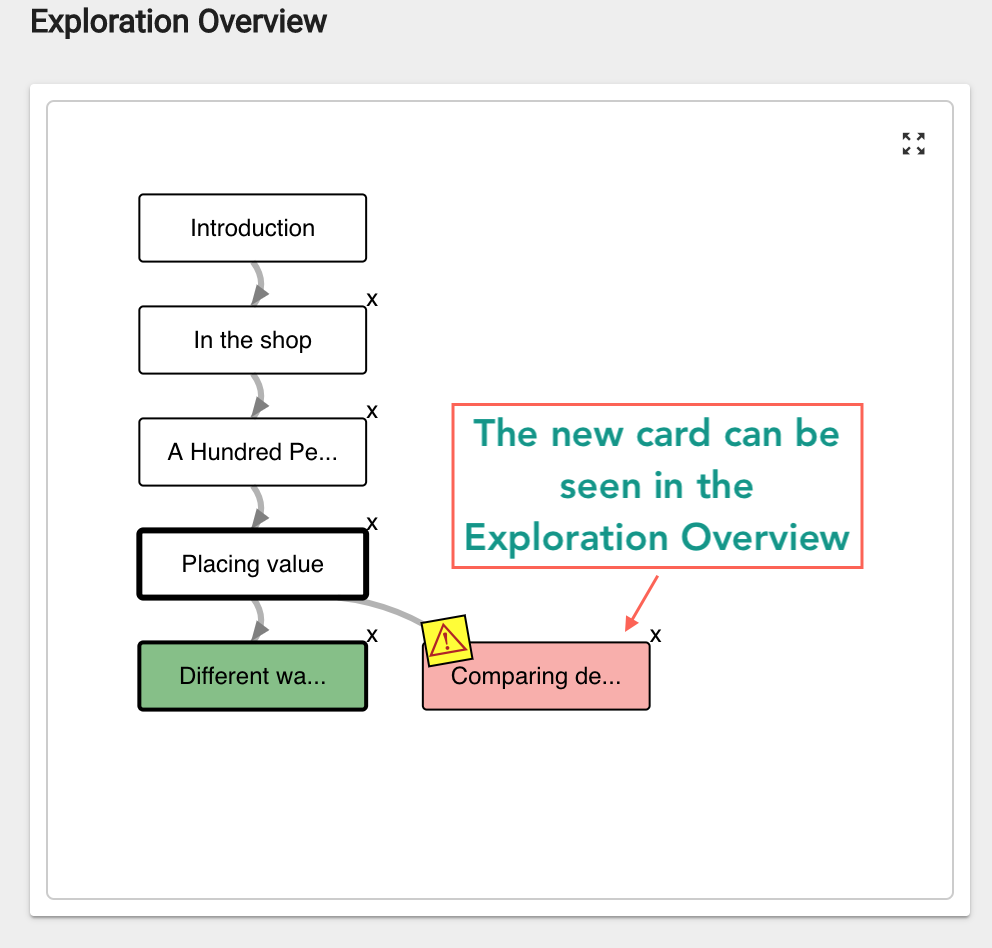
Fig. 18
You may choose to add several cards on this branch and then finally redirect the learner back to a card on the main path of the exploration.
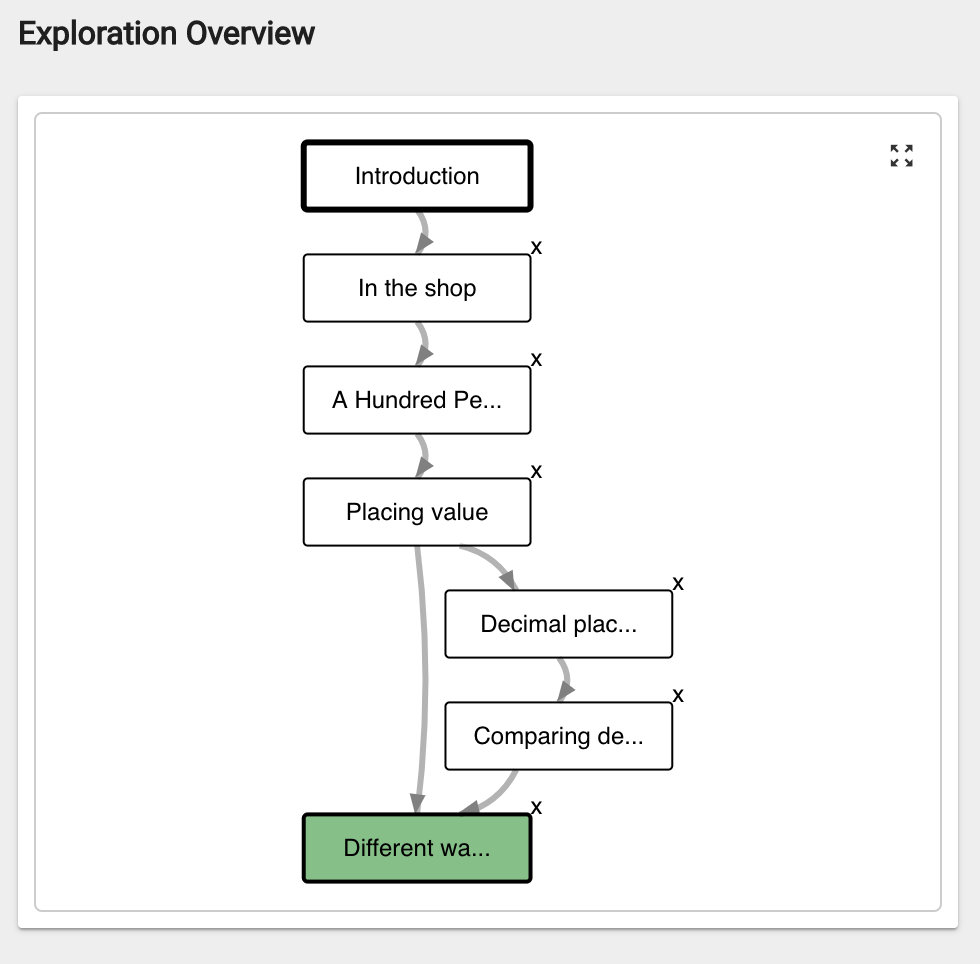
Fig. 19